
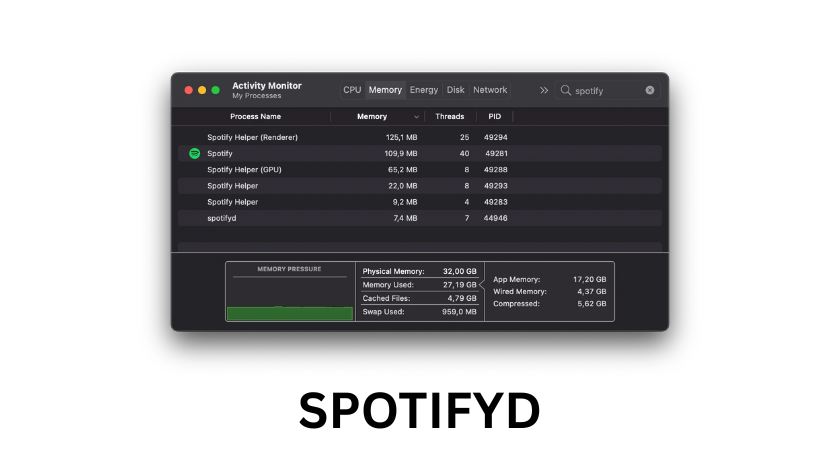
If you are anything like me, you probably feel a bit frustrated with how heavy modern software has become. I remember a time when a music player just played music. Today, the official Spotify desktop application feels more like a web browser disguised as a media player. It eats up hundreds of megabytes of RAM, it spins up multiple processes, and sometimes it just feels sluggish on older hardware. This is exactly why I went down the rabbit hole of minimalist audio tools and discovered a gem called Spotifyd.
What Exactly is Spotifyd?
To understand Spotifyd, you first have to understand what a daemon is. In the world of computers, especially Linux, a daemon is a program that runs in the background. It does not have a fancy window, it does not have buttons for you to click, and it stays out of your way. Spotifyd is an open source implementation of a Spotify client that functions as one of these background daemons.
It is written in Rust, which is a programming language known for being incredibly fast and safe. Because it is a daemon, it turns your computer into a Spotify Connect target. This means you can control the music playing on your computer using your phone or a tablet, but the actual “heavy lifting” of streaming the audio is handled by this tiny, efficient background service. It is the ultimate tool for people who love the command line or for those who want to turn an old laptop into a dedicated music station.
Why I Made the Switch
I started using Spotifyd because I had an old ThinkPad from 2012 that I wanted to use as a dedicated garage computer. The official Spotify app made the fans spin like crazy. When I switched to Spotifyd, the CPU usage dropped to almost zero. It was a revelation.
The biggest advantage is the resource footprint. If you are a developer, a writer, or someone who keeps fifty browser tabs open, you want every megabyte of RAM you can get. Spotifyd usually sips about 20 to 30 megabytes of memory. Compare that to the official app, which can easily swallow 500 megabytes or more. Additionally, Spotifyd follows the Unix philosophy. It does not try to be a social network or a podcast discovery engine. It just plays your music reliably.
How to Get It Up and Running
Installing Spotifyd is relatively straightforward, but it does require you to be comfortable with a terminal. If you are on Arch Linux, you are in luck because it is available in the Arch User Repository (AUR). You can just use an AUR helper like yay to install it. For those on Ubuntu or Debian, you can often find pre-compiled binaries on the GitHub releases page, or you can install it using Cargo, which is the package manager for Rust.
To install via Cargo, you would simply run a command like cargo install spotifyd --locked. This might take a few minutes because your computer is actually building the program from the source code, optimizing it specifically for your hardware. Once it is installed, you are not quite done. You need to tell the program who you are.
The Magic of the Configuration File
This is where many beginners get stuck, but I promise it is not that scary. Spotifyd looks for a file called spotifyd.conf. Usually, you will place this file in a folder inside your home directory, specifically in .config/spotifyd/.
Inside this file, you define your settings. You will need to enter your Spotify username and password. Now, a little tip from my personal experience: if you use Facebook to log in to Spotify, you might need to set a “device password” in your Spotify account settings to get this to work.
In the config file, you also choose your “backend.” This is essentially telling Spotifyd how to talk to your speakers. If you are on a standard Linux desktop, you will likely use pulseaudio. If you are setting up a specialized audio server, you might use alsa. Choosing the right backend is the difference between crystal clear sound and no sound at all. I personally use the pulseaudio backend on my main rig because it allows me to control the volume of Spotify independently from other apps.
Turning a Raspberry Pi Into a Hi-Fi Streamer
One of the coolest projects I ever tackled was building a “headless” music player using a Raspberry Pi 4 and Spotifyd. I had some high end bookshelf speakers that were just sitting there. I plugged the Pi into a small USB DAC (Digital to Analog Converter), installed Spotifyd, and set it to start automatically when the Pi turned on.
Because Spotifyd is so lightweight, the Raspberry Pi did not even get warm. I could be in the kitchen, open the Spotify app on my iPhone, and I would see “Raspberry Pi” listed as an available device. I would tap it, and suddenly my living room was filled with high quality audio. There was no monitor attached to the Pi, no keyboard, and no mouse. It was just a silent, invisible music box. This is the true power of Spotifyd.
Is It Better Than Raspotify or Librespot?
You might hear about other tools like Librespot or Raspotify. It can get confusing. Here is the simple version. Librespot is the library that actually handles the Spotify protocol. Spotifyd is a wrapper built on top of Librespot that adds features like the configuration file and better system integration. Raspotify is essentially Spotifyd packaged specifically for the Raspberry Pi OS.
If you are on a standard PC, Spotifyd is generally the best choice because it is more flexible. If you are a total beginner with a Raspberry Pi, Raspotify might be slightly easier because it automates some of the setup. However, I prefer Spotifyd because it gives me more control over the audio backends and the naming of the device.
Dealing With Challenges
Nothing is perfect, and Spotifyd can have its quirks. The most common issue I have faced is the “Device not found” error. This usually happens if your firewall is blocking the ports that Spotify uses for local discovery. Another common hiccup is audio stuttering. If this happens, it is usually because the buffer size in the configuration file is too small for your network speed.
I also want to mention security. Since you are putting your password in a text file, you should make sure that the permissions on that file are restricted. You can run a command like chmod 600 ~/.config/spotifyd/spotifyd.conf so that no other users on your computer can read your password. It is a small step, but it is important for staying safe.
Final Thoughts
Spotifyd is not for everyone. If you love browsing for new playlists, reading lyrics while you listen, or seeing what your friends are playing in real time, you will probably miss the official app. But if you value performance, if you love the idea of a minimalist setup, or if you want to repurpose old hardware, it is absolutely fantastic.
It represents a different way of interacting with technology. It is about taking back control of your system resources and keeping things simple. Every time I hit “play” on my phone and hear my speakers come to life through a background service that uses almost no power, I get a little bit of geeky satisfaction. It is efficient, it is reliable, and it just works.
Conclusion
Spotifyd is the gold standard for lightweight, headless Spotify streaming. By stripping away the graphical user interface, it provides a level of performance and flexibility that the official client simply cannot match. Whether you are a Linux enthusiast looking to optimize your workflow or a hobbyist building a custom audio setup, mastering the configuration and installation of this daemon is well worth the effort. It proves that you do not need the latest hardware to enjoy a premium music experience. You just need the right software.
FAQ
Q: Do I need a Spotify Premium account to use Spotifyd?
A: Yes. Like almost all third party Spotify clients based on the Librespot library, a Premium subscription is required to authenticate and stream music.
Q: Can I use Spotifyd on Windows?
A: While it is primarily designed for Unix-like systems such as Linux and MacOS, it is technically possible to compile it for Windows. However, the experience is much smoother on Linux.
Q: How do I change the volume if there is no interface?
A: You can change the volume using the Spotify app on your phone or tablet. Alternatively, if you are on Linux, you can use system mixers like amixer or pavucontrol.
Q: Does Spotifyd support podcasts?
A: Support for podcasts has historically been hit or miss with Librespot-based clients. While music works perfectly, some users report issues with certain podcast formats.
Q: Can I run multiple instances of Spotifyd?
A: Yes, you can run multiple instances as long as you give them different device names and potentially different configuration files. This is great for multi-room audio.